Pick Our Brain

Open Source Contributions + Knowledge Sharing = Better World

  • Experiments in 2D

    Share this post:
    : Experiments in 2D
    Thanks to EJ Hassenfratz (@eyedesyn) for the reminder that 3D doesn’t necessarily have to look the part.


    Nor does it have to be hi-res.


    *PS – Thanks to the guys over at Greyscalegorilla, and their Signal plugin for Cinema 4D, No Keyframes were Harmed in the Making of These Images.

  • ScienceCasts: 2016 Ends with Three Supermoons

    Share this post:
    : ScienceCasts: 2016 Ends with Three Supermoons

    More top notch animation compiled using After Effects.

  • Stick or Carrot

    Share this post:
    : Stick or Carrot

    The V! Studios blog, or V! Blog as we call it, stands like many other company blogs. It relies on not a singular voice but rather many voices. To keep the blog fresh we lean on the input of several members of the team to provide interesting content for our readers.

    By using a multi-headed approach to authoring, the blog presents a window into the many fields that the V! Studios team operates. Whether it provides a peek into the work created by our developers, deep discussion of techniques involved with cloud integration, or making shortcuts to simplify working within a high level animation software suite, the V! Blog covers a wide ranging field of topics.

    Relying on the entire team to author the blog is great, when it works. While the blog covers a number of topics in a number of arenas, it covers nothing without the support of the team members tasked to supply content. Without the input of our subject matter experts, the blog risks withering on the vine to die so to speak.

    As a driving member of the blog, I drafted a schedule for the team to follow. Comprised of V! Studios team members, the scheduled outlined the authors with a simple sequential dated order. The guide indicates who is to write an entry and when.

    Simple right? Except when it isn’t. Some team members seem to choose to forget about their duties when it comes to crafting a blog entry. Why? I don’t know.

    Perhaps they lack proper motivation. That is where I turn to you, our readers, to help me help my teammates be more…punctual in supplying timely updates to the blog. My predecessor utilized the carrot. If a blog entry received the most number of views in a month, you won a prize. I, on the other hand, prefer a more measured approach. I want to bring a stick, the stick of shame.

    Perhaps a public shaming of my colleagues will encourage them to support our efforts to keep the V! Blog current and relevant. Thus, I ask for your input with the simple, totally scientific survey below. Please answer truthfully and honestly. Should I leverage shame to steward my colleagues toward acting as fully competent blog writers? Please vote early and often.

    The results will be posted at a later date.

  • ScienceCasts: Massive Cloud on Collision Course with the Milky Way

    Share this post:
    : ScienceCasts: Massive Cloud on Collision Course with the Milky Way

    More crack animation for NASA and the Sciencecast series.

  • ScienceCasts: NASA Spacecraft Fly in Record-setting Formation

    Share this post:
    : ScienceCasts: NASA Spacecraft Fly in Record-setting Formation

    Four NASA spacecraft have performed a thrilling maneuver to understand the physics of explosive reconnection in Earth’s magnetosphere.

    More first rate AfterEffects work in play here. Where does NASA get such top notch animation? I wonder.

  • Airdrop: How Apple made my life easier

    Share this post:
    : Airdrop: How Apple made my life easier

    As a driving member of the V! Studios social media team, posting engaging content presents a host of challenges. Without considering contextual merits of a post, actually posting the content shouldn’t stand as a blocker.


    Posting photos and videos from any given platform is fairly simple and straightforward. Take a picture or capture a video, open the app of choice, and then boom – you’re done. But, what if your content needs just that extra bit of polish with and edit here or a touch of color correction there to bring out a deep blue sky?


    Facebook and Twitter have you covered but what about Instagram? How do you post that first rate snippet from your animation team that is sure to get numerous ‘likes’ to Instagram?


    I know what you’re thinking, “Come on V-Studios. You guys deal with sophisticated web application development tools and are well versed in AWS architecture. Surely you have heard of Dropbox or Google Drive, right?” Well, right you are.


    The problem with leveraging cloud storage to transfer multimedia assets? The convoluted solution. Transferring a file from a desktop to mobile device involves uploading the file to a cloud storage account followed by downloading the file from the associated application on your mobile device.  While not a proverbial case of rocket science, the process can certainly present difficulty for users.

    Enter Airdrop from Apple. Airdrop, per wikipedia, “is an ad-hoc service in Apple Inc.‘s OS X and iOS operating systems, introduced in Mac OS X Lion (OS X 10.7) and iOS 7, which enables the transfer of files among supported Macintosh computers and iOS devices without using mail or a mass storage device.”

    Relying on Airdrop provides a clear pathway to transfer of photo and video files with a simple drag and drop within finder to a mobile iOS device from Apple desktop/laptop. From the other side, transferring files from iPhones and iPads, the process holds the same simple approach. 

    Detailed instructions for the Airdrop transfer process can be found on the Apple support site.
    Following the steps as laid out by Apple in the links above will greatly facilitate the transfer of large digital media assets for posting to content to social media sites, especially Instagram.
    Use Airdrop and have content posted in seconds or use multiple apps to transfer content and face the struggle that Windows and Android users likely know all to well.

    In the meantime this video file weighs in at around 85MB, not exactly email friendly. For Airdrop? Not much of a challenge.

    A video posted by V! Studios (@the_v_studios) on

  • ScienceCasts: To Bennu and Back

    Share this post:
    : ScienceCasts: To Bennu and Back

    NASA’s OSIRIS-REx spacecraft is scheduled to launch on a mission to orbit, map and collect samples from the asteroid Bennu, and return to Earth 7 years later.

  • Polite Rendering While You Work

    Share this post:
    : Polite Rendering While You Work
         Here at V! Studios, we try to use our resources as efficiently as possible, as long as it doesn’t interfere with getting the job done. One of those resources is obviously computing horsepower, especially when it comes to rendering 3D and 2D images and animations. While we do have a wonderfully auto-scalable cloud-based render farm, using it costs money. Before we reach out to the cloud for more computing power, we try to take full advantage of the existing hardware on-site. We’ve got about 300 GHz of CPU processing power and 276 gigs of RAM in our animator’s workstations that spends most of it’s time twiddling its thumbs. Basic UI only takes a few percent and much of the 2D and 3D interface is handled by the GPU. It’s really only while rendering that the hardware is fully engaged. 
         Our render farm has the ability to include all of our animator’s workstations, which each have considerable render power. Until recently, we only included those machines for after-hours render jobs, so as to avoid interfering with daily work. It can be hard to get anything done when your computer is cranking nearly 100% on a render job in the background. There’s just not a whole lot of foreground CPU cycles left to work with. 
         Enter a wonderful little piece of the Unix/Linux/Mac OS world called “niceness.” It has been around for more than 35 years and is simple and robust. Niceness is similar to the CPU Priority settings that can be manually set on Windows, but it has nearly six times the breadth and granularity of Windows Priority levels, and it is much easier to automate if you are at all comfortable working on the command line. 
         Niceness values run from -20 to 20, giving us 41 different levels of priority. The higher the niceness value, the more polite the process, where it will give up the CPU to any process with a lower niceness value. Most processes have a niceness value of 0 by default, letting the CPU manage resources as it sees fit. When your work and the background render have the same priority, the render is going to constantly fight for access to CPU cycles and RAM.
    So Polite!
         There is a free GUI utility for the renice command for monitoring and manually setting the niceness value on OS X called Process ReNicer.
    http://www.eosgarden.com/en/freeware/process-renicer/overview/ 
    It hasn’t been updated since 2013, but still seems to work fine. 
         We use the cron utility that is built into nearly every *nix based OS. (There’s a link to a tutorial below.) We use it to set the nice values for specific render processes. Cron is a simple time-based scheduler that will execute commands or scripts automatically at specific times, dates or intervals. The cron utility looks at a text file called crontab (short for cron table). A few simple entries in that text file, and off you go.
         In our case, we have two different render processes that gobble up CPU cycles like mad. One is MayaBatch, which manages Maya renders, and the other is Commandline, which manages Cinema 4D renders. (Even within Maya and C4D, there are multiple ways to setup renders so that the process names may be different.)

    CPUs Blazing, No Problem Working
         The nice command launches a process with a particular niceness value, while renice changes the niceness value of an already running process. You can get more information about the uses and syntax of both commands by typing “man nice” or “man renice” in the terminal window. “man” is just short for “manual” it’s handy for all kinds of things in the *nix world. If you want to learn more about any command or utility, you can usually get a lot of info with man.
         One problem with using the nice and renice commands is that they expect you to know the specific ID number of the process you want to change. Every time a process is launched, it receives a new ID number. To get around this, we use a command called pgrep. It is a variation of a common search tool, grep, which searches files for specified strings of characters. In our case, we just want to search the currently running processes, which is exactly what the “p” in pgrep does. If you know the name of the process you are looking for you can find that processes ID number simply by typing
    pgrep [ProcessName]
    in the terminal, and it will return the ID number of the named process. 
    For example, I might enter
    pgrep MayaBatch
    and get the returned value 
    216
    To change the nice value of a process we can enter

    renice [new niceness value] -p [ProcessIDNumber]
    For example, I might enter
    renice 19 -p 216
         This would set the niceness of the currently running process with ID 216 to a value of 19. The -p tells renice that the next item is the Process ID number.
         Since we don’t necessarily know the Process ID number, and we don’t want to have to manually use the pgrep command every time we want to change a processes niceness, we can incorporate pgrep right into the renice command itself like this

    renice [new niceness value] -p $(pgrep [ProcessName])
    This tells renice to use the results of the pgrep command, which is a $ or character string, as the Process ID number. 
    So I might use the following command
    renice 19 -p $(pgrep MayaBatch)
    and any currently running process named MayaBatch will have its niceness value set to 19, without me having to look up the Process ID number.
         Great. Now I just need my machine to look out for any new process named MayaBatch, and when it sees one, change the niceness value.
         Here’s where cron and crontab come in. I can add that renice command into my crontab file and tell it how often to execute that command. For a simple command like renice, cron can execute it lightning fast, in a tiny fraction of a second, using virtually no resources. It has no noticeable effect on the user experience, working on the computer. Because it has so little impact on the computer’s performance, I run it once every minute. That way a render job will never hog resources for more than a minute and generally a lot less. 
    Here’s a short tutorial on the basics of cron and crontab on Mac OS X. 
    https://ole.michelsen.dk/blog/schedule-jobs-with-crontab-on-mac-osx.html
    It works much the same on any *nix based system.

    Based on the commands and syntax discussed above, we use a crontab file with the following contents:

    */1 * * * * renice 19 -p $(pgrep Commandline)
    */1 * * * * renice 19 -p $(pgrep MayaBatch)

         This runs once every minute, looking for processes called either Commandline or MayaBatch. If it finds one, it sets the niceness value to 19.

         I first ran this cron job on my own workstation as a test. My machine hosted several renders throughout the day without any noticeable impact on my own work, both in 3D and 2D. I’m sure having plenty of RAM and a very fast drive makes a difference. Ideally, you’d want to have enough RAM that the entire render job can be held in memory, along with whatever other work you are doing. We average about 48 gigs of RAM per machine and 8 to 12 multi-threaded cores, and that has been plenty.

         We have now deployed the same cron job across all our animator workstations, and so far have been enjoying the additional productivity without any obvious negative side effects.

  • AWS VPC Networking demystified : Part 1 – VPC IP Addressing and Routing

    Share this post:
    : AWS VPC Networking demystified : Part 1 – VPC IP Addressing and Routing

    This is the first of a three part series on how Amazon’s VPC (Virtual Private Cloud) networking works, and how to create a VPC and provision resources within a it. First things first, what is a VPC? Amazon’s VPC documentation explains it this way :

    “Amazon Virtual Private Cloud (Amazon VPC) enables you to launch Amazon Web Services (AWS) resources into a virtual network that you’ve defined. This virtual network closely resembles a traditional network that you’d operate in your own data center, with the benefits of using the scalable infrastructure of AWS.”

    In a nutshell, a VPC is like a remote datacenter network. While there are many differences, here are a few ways an AWS VPC is similar to a remote datacenter network:

    • You can specify IP addressing, subnetting and routing
    • You can’t physically access the VPC, you must use remote access tools such as SSH or RDP
    • The VPC operates independently of your corporate network, but can be connected by VPN
    • The VPC has it’s own Internet connectivity, NAT and firewall rules
    • The VPC Internet is probably much faster and more reliable than your corporate network

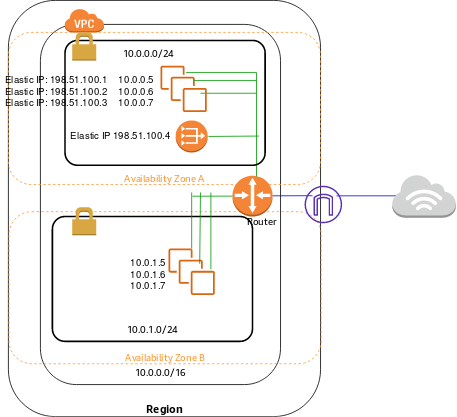
    Now that you understand what a VPC is, what are the basic building blocks? Like any ordinary network, a VPC has a physical layer. All of the switching, routing and cabling hardware you would have to set up by hand is automagically configured for you. When you create a VPC, you specify only two things: the name and the CIDR block.  You can specify any name you like, and any IPv4 CIDR block as large as /16. While the name can be changed at any time, the CIDR block cannot be adjusted after the VPC is created, so be sure to plan your network addressing carefully. It’s important to note that IPv6 is not currently supported in AWS VPCs.

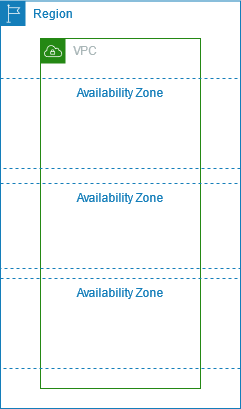
    Once you’ve created the VPC, you can then define subnets. The most important considerations when creating VPC subnets is which AZ (Availability Zone) you want each subnet to exist in, and how much of your VPC CIDR block to assign to each subnet. Subnets can be deleted and recreated with new settings, but only when no AWS resources (EC2 Instances or ELBs) are provisioned in those subnets. This gives you a good reason to provision a much larger CIDR block than you think you need, in case you want to recreate your subnets with an alternate subnetting or AZ layout.


    The next step is to provision the Internet access and routing for your VPC. By default, routing among the subnets in the VPC work automatically. To provide Internet access, you must first provision an Internet Gateway.

    The Internet Gateway allows bi-directional traffic to and from your VPC. This means that EC2 instances in your VPC will each have a public IP address and can access resources on the Internet, also that the Internet can access your instances.

    Once you have created your Internet Gateway, you’ll need to configure routing for your public subnets. This is done by creating a custom routing table which routes to the Internet, i.e. 0.0.0.0/0, via the Internet Gateway.

    With bi-directional access, be sure to assign a Public IP or Elastic IP to any EC2 instance when you create it.

    If you don’t want all of the EC2 instances in your VPC to have a public IP address, then you’ll also need a NAT Gateway. This allows you to hide private subnets behind the NAT Gateway with only outbound Internet access, and also have public subnets with routable IP address with bi-directional access.

    Once you have created your NAT Gateway, you’ll need to configure routing for your private subnets. This is done by creating a custom routing table which routes to the Internet, i.e. 0.0.0.0/0, via the NAT Gateway.

    With these steps completed, you now have a functional VPC. You can provision EC2 instances in a public subnet with bi-directional Internet access. You optionally can provision instances in a private subnet with only outbound access to download Internet content.

    In the next installment of our series, we’ll cover how to to implement network access control with security groups.

  • ScienceCasts: A Spectacular Conjunction of Venus and Jupiter

    Share this post:
    : ScienceCasts: A Spectacular Conjunction of Venus and Jupiter

    Great animation to illustrate Venus and Jupiter converging for a spectacular conjunction in the sunset sky on August 27th. 

Generic selectors
Exact matches only
Search in title
Search in content
Post Type Selectors